Thank you! Your submission has been received!
Oops! Something went wrong while submitting the form.

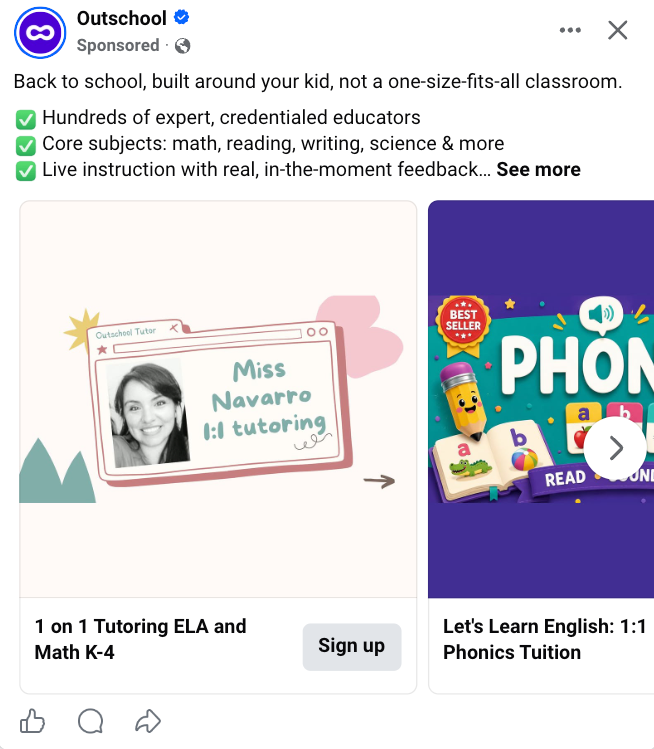
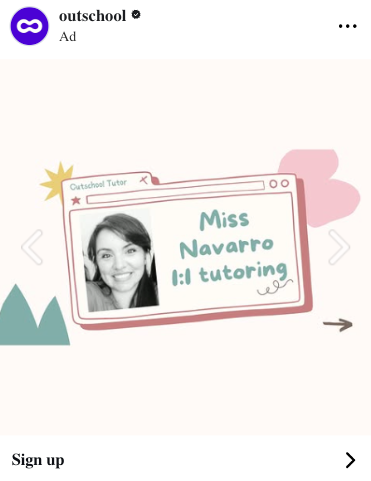
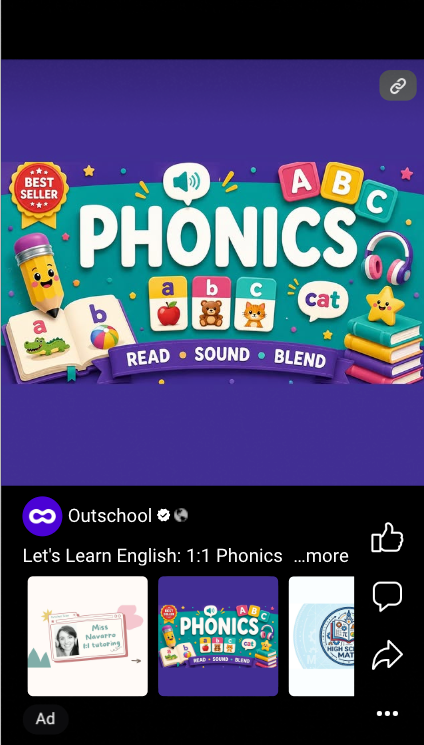
Your marketing image is one of the most important things you can do to help your class succeed in ads. When you upload a high-quality square image, Outschool uses it as the primary asset in Facebook and Instagram ads, ahead of your cover image and video. If you don't have one uploaded, your class may not be advertised on Meta at all.
This guide covers everything you need to know to upload an image that converts.
Outschool runs dynamic ads on Meta (Facebook and Instagram) to help parents find your classes. These ads pull directly from your class listing, including your marketing image.
When your square marketing image is high quality, it:
When it's missing, your class may not appear in Meta ads at all. When it's low quality, Meta falls back to your cover image, which is 16:9 and wasn't designed for the square ad format. Either way, your class is at a disadvantage before anyone even sees the title.

Requirement
Format
Square (1:1 ratio)
Ideal size
1080 × 1080 px
Minimum size
600 × 600 px
File type
JPG or PNG
Text
Short class title, centered, bold, readable at small size
✅ Do this
⛔ Avoid these common mistakes
You don't need to be a designer. Here are three approaches:
Option 1: Use Canva (free) Canva has an Instagram Post template that's already 1080 × 1080 px. Search for "education" or "class" templates, drop in a short class title, and download. It takes about 5 minutes.
Option 2: Use a photo you already have If you have a photo from class, or a relevant stock photo, open it in any photo editor, crop it to a square, and add a text overlay with your class title. Make sure the text is large enough to read on a phone.
Option 3: Screenshot a slide If you use Google Slides or PowerPoint, create a simple 1:1 slide with your class title and a relevant background image, and screenshot it. Export at the highest quality available.
The image will be picked up automatically in Outschool's ad feed. No other steps needed.
→ Go to your class listing to update your marketing image
If you're not sure whether your image meets the spec, a good rule of thumb: if you can read the class title clearly on your phone screen and the image looks crisp, you're in good shape.
For more on how your class listing affects ad performance, see:
Set your own schedule, price, and curriculum, and reach motivated learners around the world.